Attendee guide
Using SchellingBoard as an attendee
Open the event link, enter the site password if asked, and pick your name from the list. What you can do next depends on the event’s phase.
| Phase | What you can do |
|---|---|
| Proposal | Propose sessions, edit your own, comment on any of them |
| Voting | All of the above, plus vote. Counts stay hidden |
| Scheduling | Counts become visible; schedule sessions, book slots, RSVP. Proposing and voting close |
Buttons belonging to another phase are greyed out rather than hidden — hover one to see when it opens. Organizers can skip phases, and an event with no phase dates at all is always in the scheduling phase.
Proposing a session is not a promise to give it, and voting is not a promise to attend. RSVPs are the exception.
Pick your name
By default this isn’t a login — anyone can pick any name — so please pick only your own. If you’d rather it were a login, see Protect your name.
Propose a session
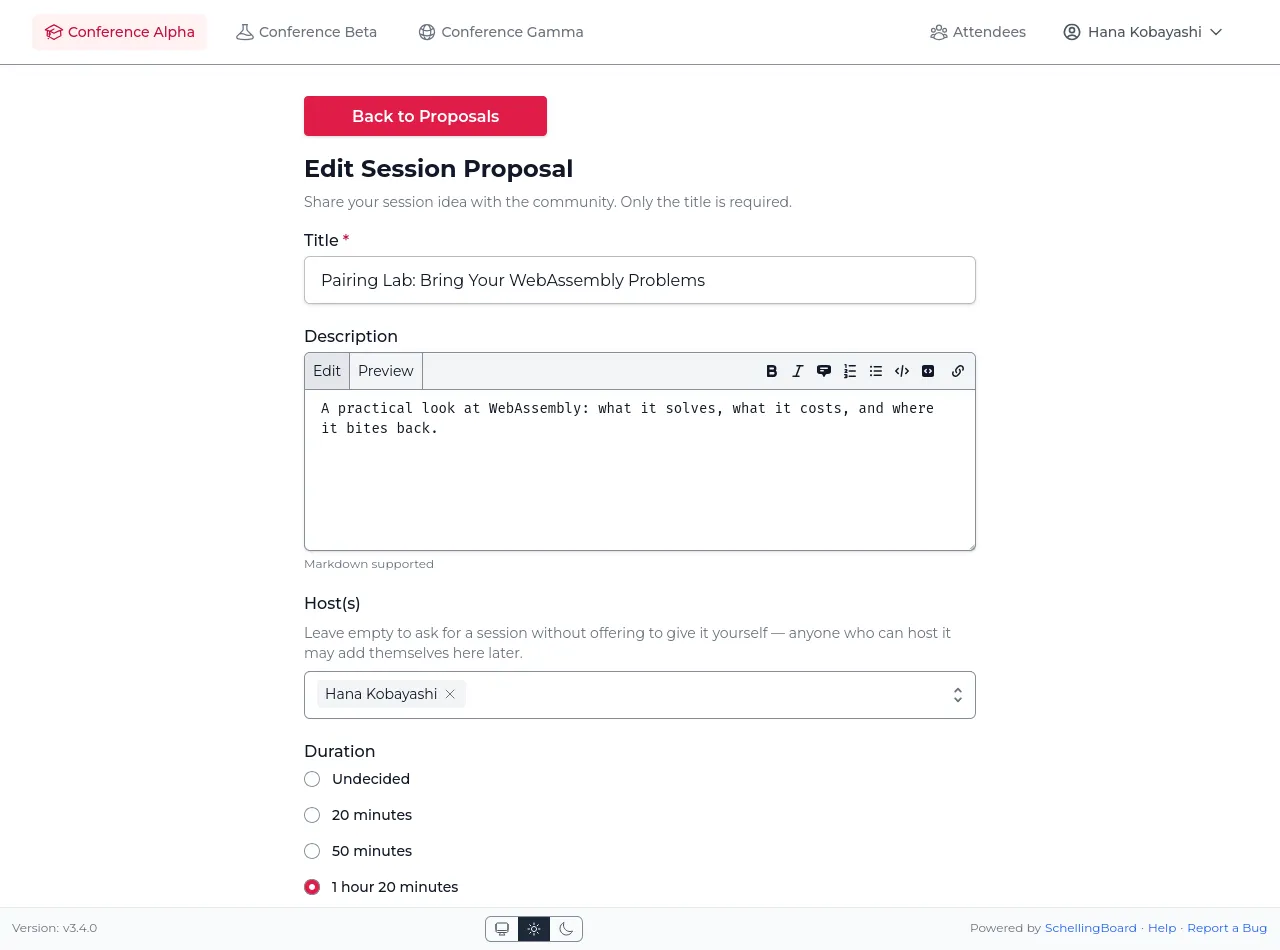
During the proposal phase, click Add Proposal and give a title, a description, and optionally co-hosts. You can edit your own proposals until scheduling starts. A proposal only becomes a real session once someone puts it on the schedule.
- A proposal doesn’t need a host. An empty host field says “I’d like someone to offer this” rather than “I’ll give this”. Anyone who can give such a session takes it on by editing the proposal and adding themselves — nobody’s permission needed.
- Descriptions accept Markdown. The toolbar above the box adds bold, italics, links, lists, quotes and code; the Preview tab shows how it will look.
- You can browse, search and sort proposals in any phase. Search covers titles, hosts and full descriptions, so a tool or prerequisite mentioned deep in a proposal is enough to find it. While you search, results stay ordered by how well they match.
Discuss a proposal
Open a proposal to see its comments — a good place to ask what background is assumed, offer to co-host, or work out whether two proposals should merge. Pick your name first, then comment or reply.
- Replies are threaded;
[-]folds a comment and everything under it away. - Like a comment to agree without adding another to the thread. Click the count to see who liked it, or “Liked” again to take yours back.
- You can edit or delete your own comments. Deleting is permanent — no history, no undo. If there are replies, a “Comment deleted” placeholder stays behind.
- Each timestamp links to that comment alone, so you can point someone at one particular remark.
Vote
During the voting phase, react to each proposal with ❤️ Interested, ⭐ Maybe, or 👋 Skip. Click your choice again to remove it.
The fastest way is “Go to Quick Voting!” on the proposals page: one proposal at a time, skipping the ones you’ve already voted on, counting down how many are left.
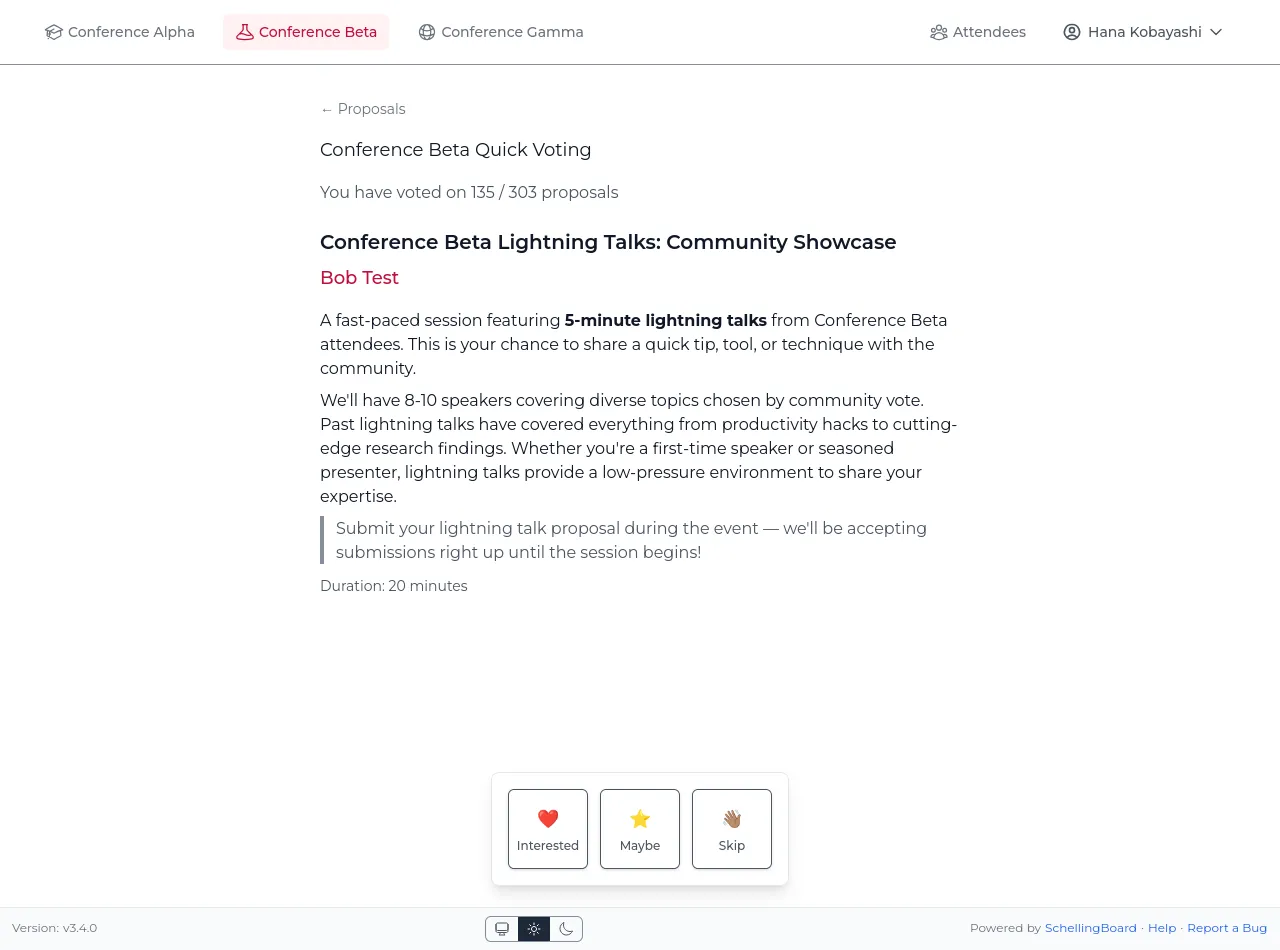
You can change your votes at any time while voting is open — your choice is highlighted on each proposal, and the “Only voted” / “Only unvoted” filters narrow the list to either group. You don’t vote on your own proposals.
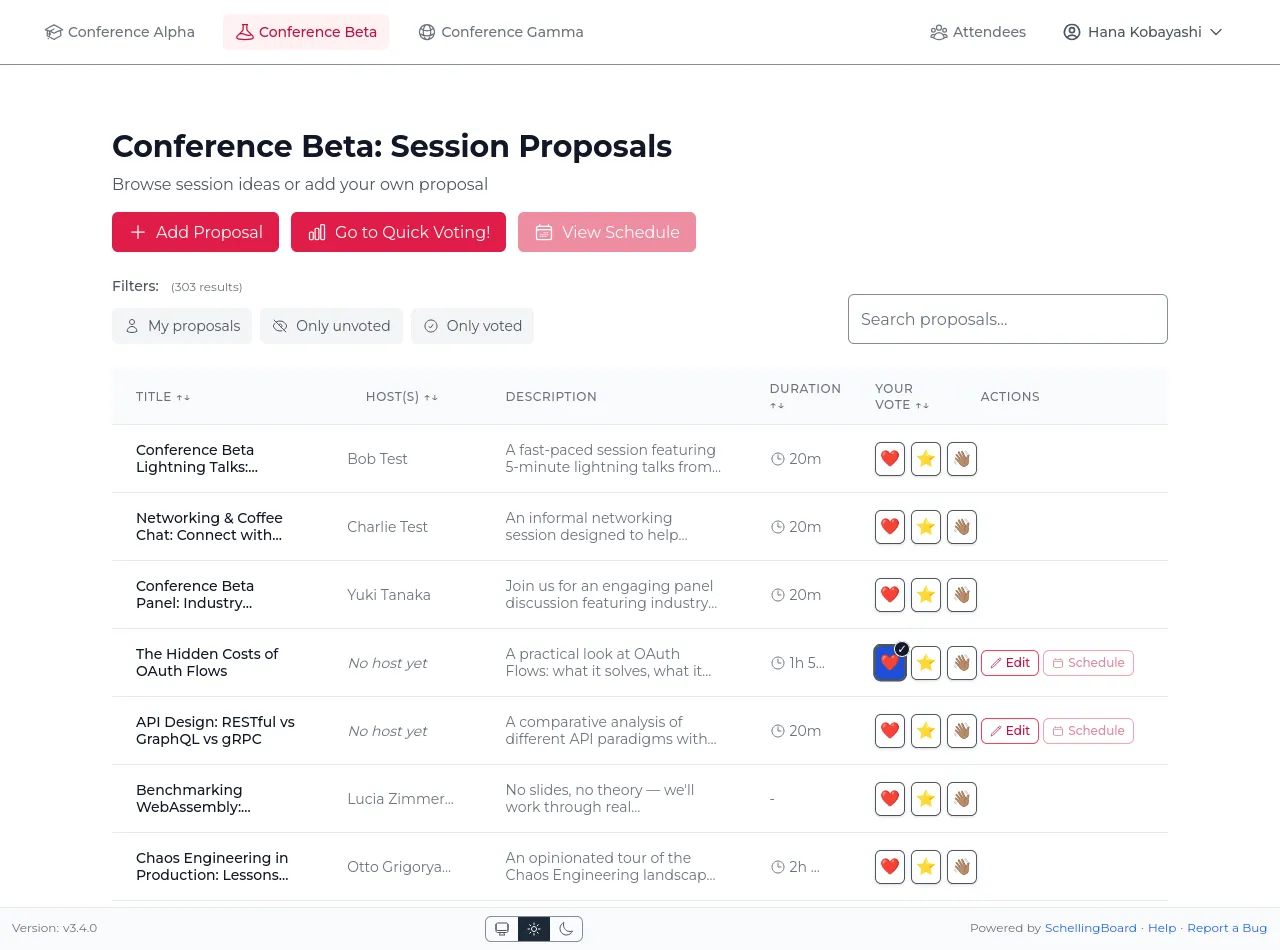
Results stay hidden until voting closes
Nobody sees vote counts while voting runs, so early votes can’t sway later ones. The counts appear for everyone when scheduling starts.
Only counts are ever shown — never who voted which way. Your own votes are visible to you alone; a host sees how many people were interested, not their names, and neither does anyone else, organizers included.
Why the vote buttons are greyed out
Greyed-out buttons mean voting isn’t available to you right now. Hover one to see why:
- “Voting will be enabled at …” — still the proposal phase. Add and discuss proposals now; come back when voting opens.
- “Select a user first” — you haven’t picked your name yet.
- “The voting phase is over” — scheduling has started, and vote counts are visible now.
The schedule
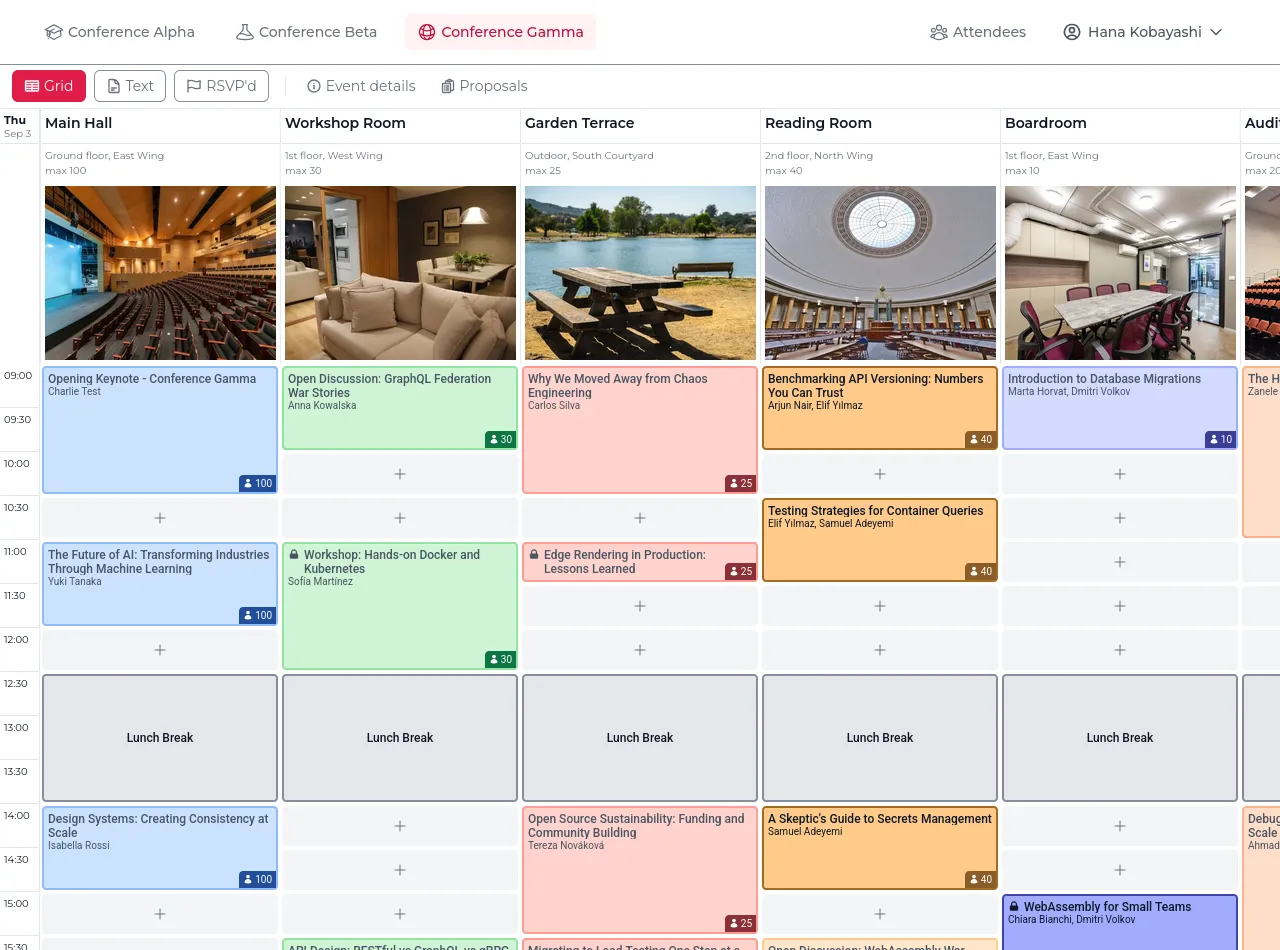
Once scheduling opens, proposals turn into real sessions on the grid. Proposing and voting close.
Put a proposal on the schedule
Two ways, whichever you find first:
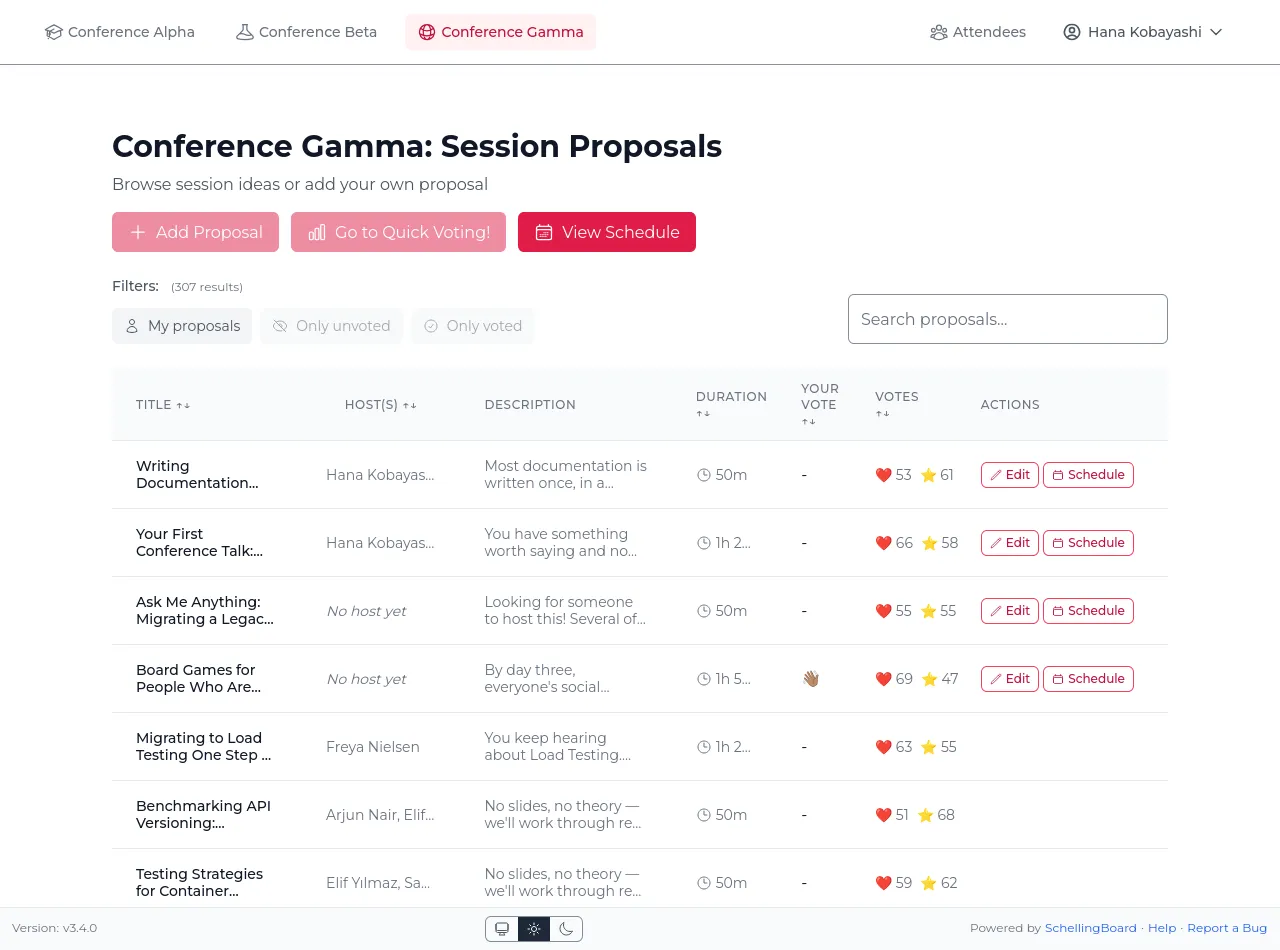
- From the proposal — click “Proposals” at the top of the schedule, then “Schedule”, either in the table or on the proposal’s own page. Pick a room and a time slot, and save.
- From the grid — click an empty slot in a bookable room, then use “Pre-fill from proposal” to fill the form from one of your proposals. Or ignore it and book the slot with a brand-new session that was never proposed.
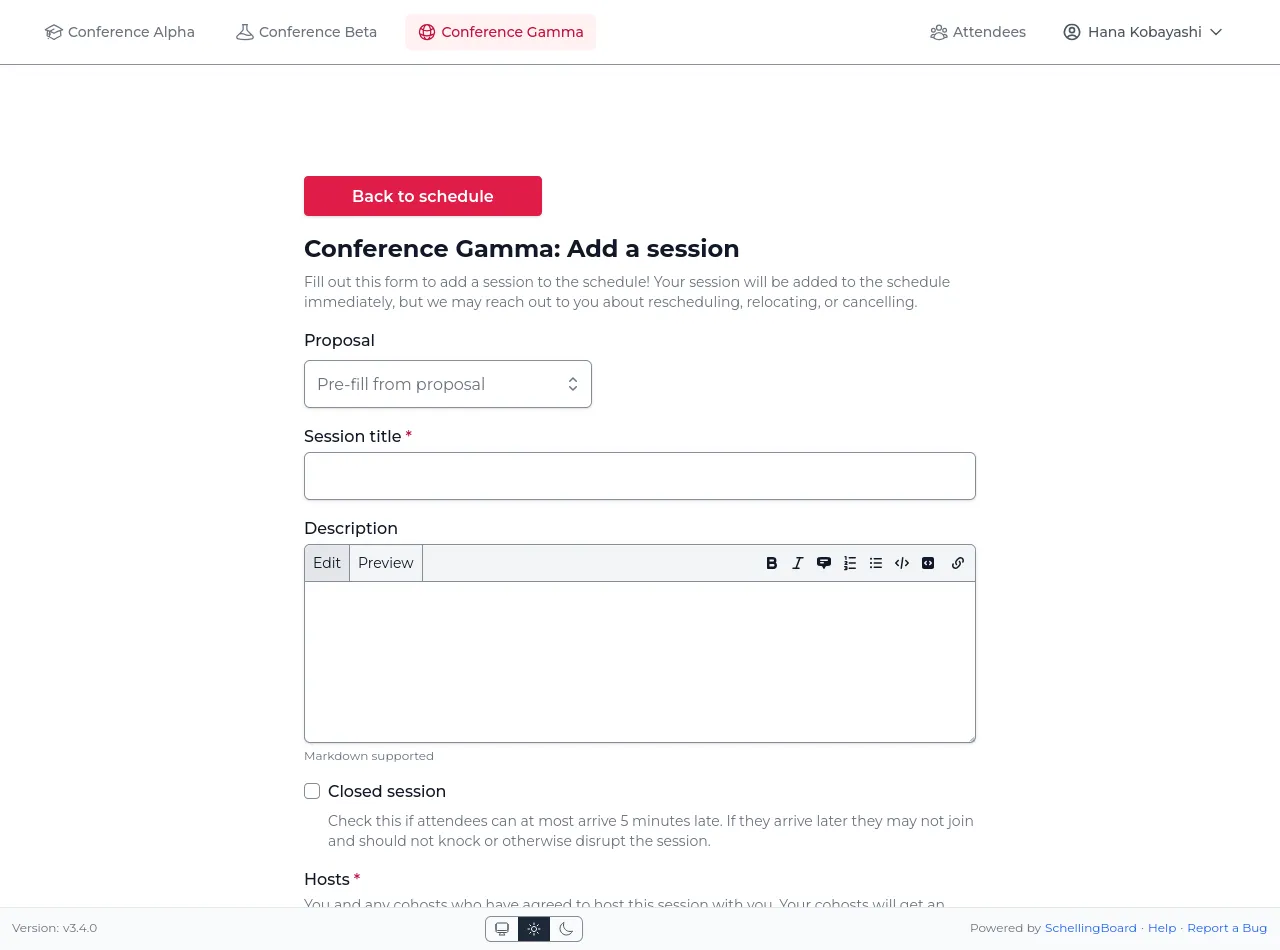
Worth knowing: proposals with no host are up for grabs — anyone can schedule one, and they appear in your “Pre-fill from proposal” dropdown alongside your own. And the same proposal can be scheduled more than once, for instance twice if interest is high.
How many people to expect
Vote counts show how much interest there is, not how many people will walk in — voters didn’t know what would end up running against your session.
Open your own proposal during scheduling to see a vote breakdown: how many attendees voted and how many didn’t, how the votes split across ❤️ ⭐ 👋, and how many people to expect if you host it — a range, like “expect 8–17 people”.
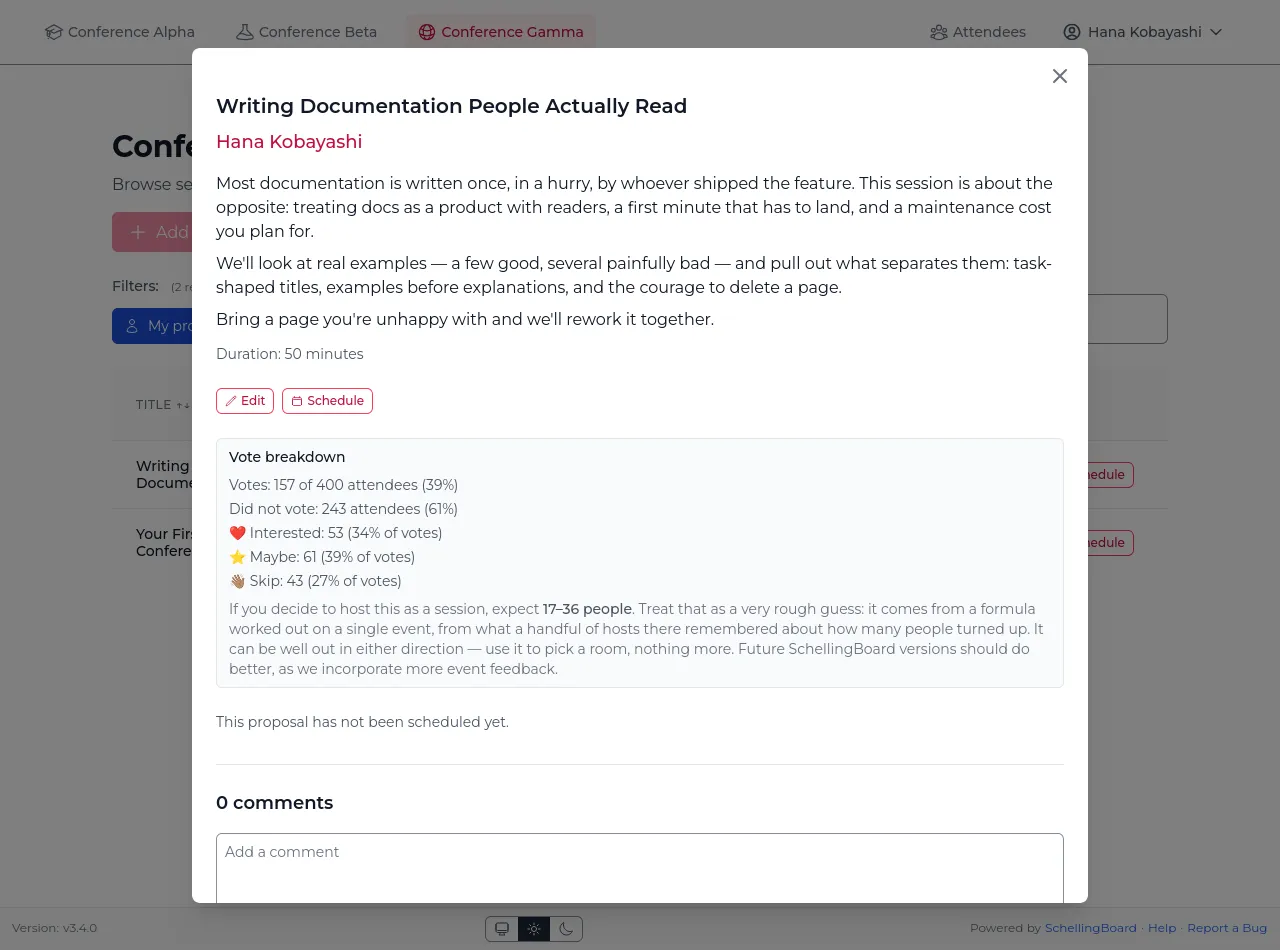
It comes from a single event where thirteen hosts recalled roughly how many people came to their session, so it can be well out in either direction. Use it to pick a room, nothing more. No figure is shown at all if fewer than 10% of attendees voted on the proposal, or if nobody voted ❤️.
Keep voting ⭐ Maybe. Today’s formula happens not to use ⭐ votes, but that rests on the same thirteen sessions — and hosts read your ⭐ as real interest regardless.
The breakdown is for the hosts; on a proposal nobody hosts yet, anyone can see it, since anyone may still take it on.
RSVP
Click a session to see its details and RSVP.
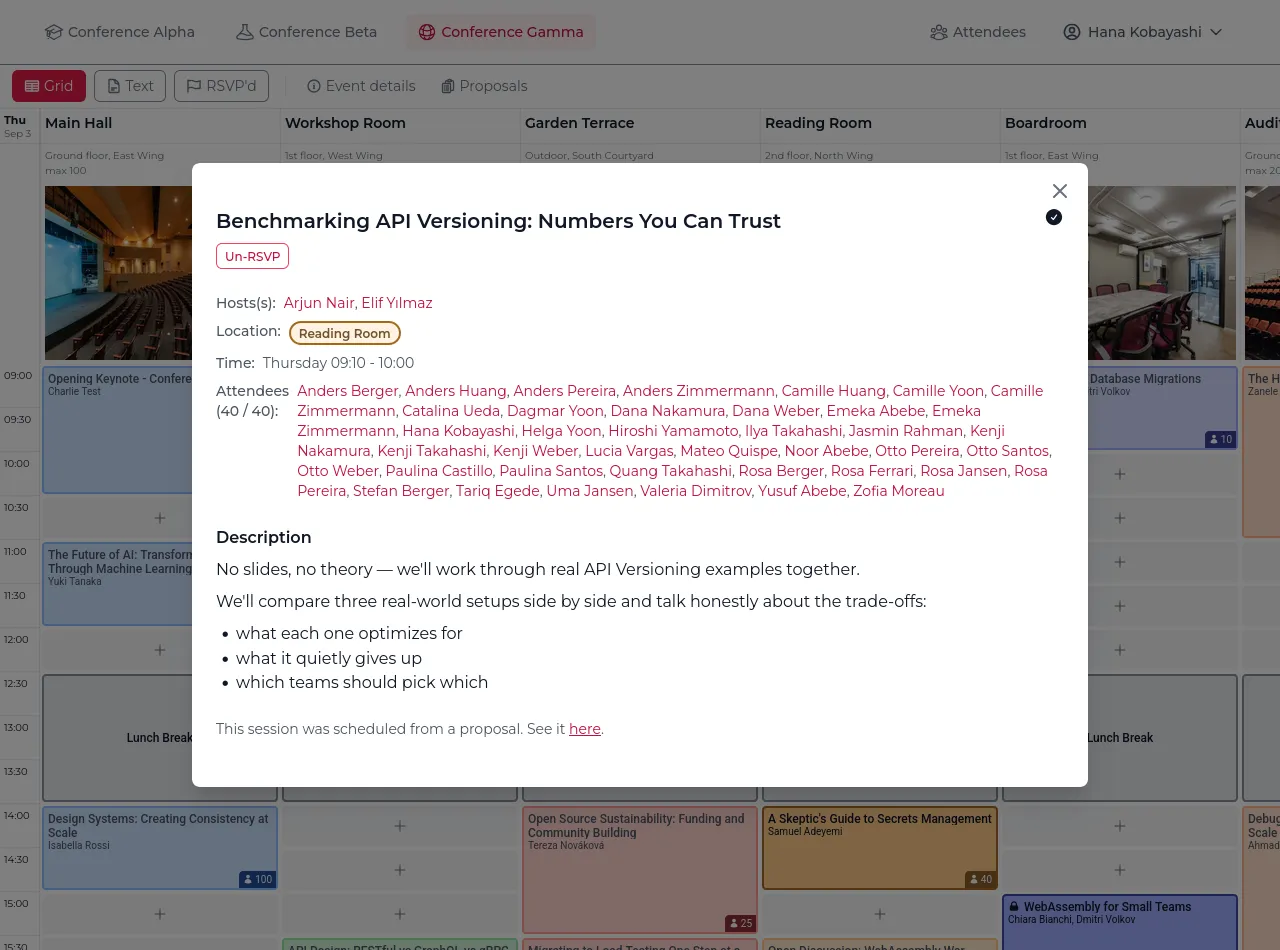
Unlike votes, hosts plan around it. If you change your mind, take it back with “Un-RSVP” — someone else may want the place.
- You’ll be warned if you RSVP to two sessions that overlap.
- Capacity is either advisory or a hard limit, depending on how the organizers set the event up. With a hard limit the button reads “Session full”.
- A session marked closed warns that you can be at most five minutes late, but doesn’t block your RSVP.
Attendee directory & profiles
The directory lists everyone at the event on a single page — photo and the first couple of lines of their bio, or their first answered conversation starter if they haven’t written one — so you can read who is coming without opening anything.
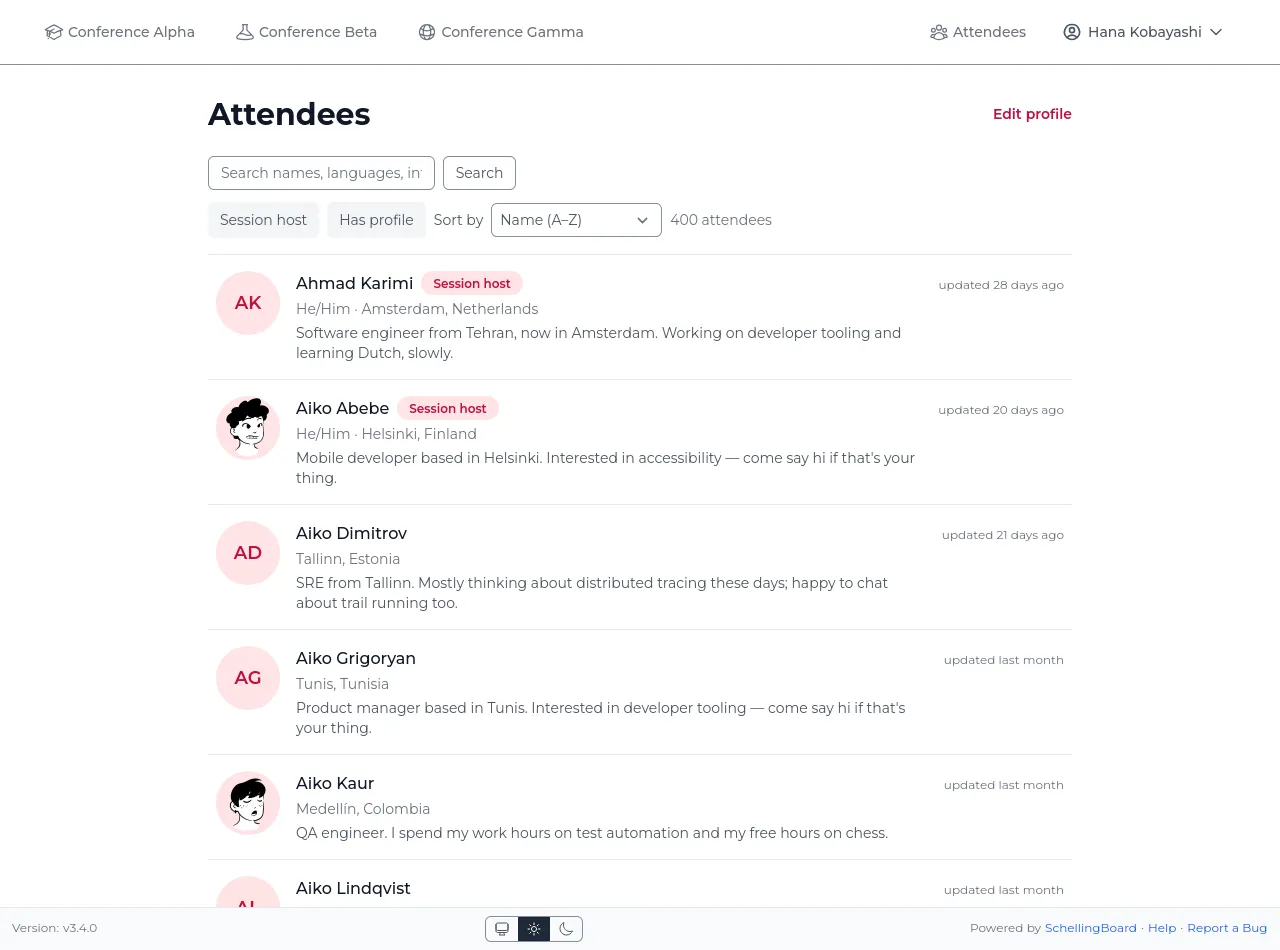
- Search covers everything on a profile: names, pronouns, bios, languages, where someone is based, prompts and answers, and any contact details they published. A remembered handle, a service name like “Signal”, or a shared interest is enough to find someone. Your private email address is never part of a profile and is never searched.
- Two filters, which combine: Session host, and Has profile (anyone who filled in a bio, pronouns, location, languages, photo, an answered conversation starter or a contact detail).
- Sort by → Recently updated is the quick way to see who has filled theirs in since you last looked. Each row shows when the profile last changed; empty profiles show no date and come last. While searching, results stay ordered by match instead, so the sort choice is unavailable.
Click any name, wherever it appears, to open that person’s profile — bio, proposals, and the sessions they’re hosting. It opens over the directory rather than replacing it, so closing it puts you back exactly where you were, search and filters intact.
- Prev and Next at the top move through attendees without going back to the list — so do the arrow keys, and a sideways swipe on a phone. They follow whatever the list is showing, so a search or filter narrows what you read through, and the count at the top says where you are.
- Escape closes the profile.
- The photo is shown large, since that’s how you recognise someone; click it for larger still. On a wide window it stays beside you as you scroll, together with name, pronouns, location and languages.
Your profile
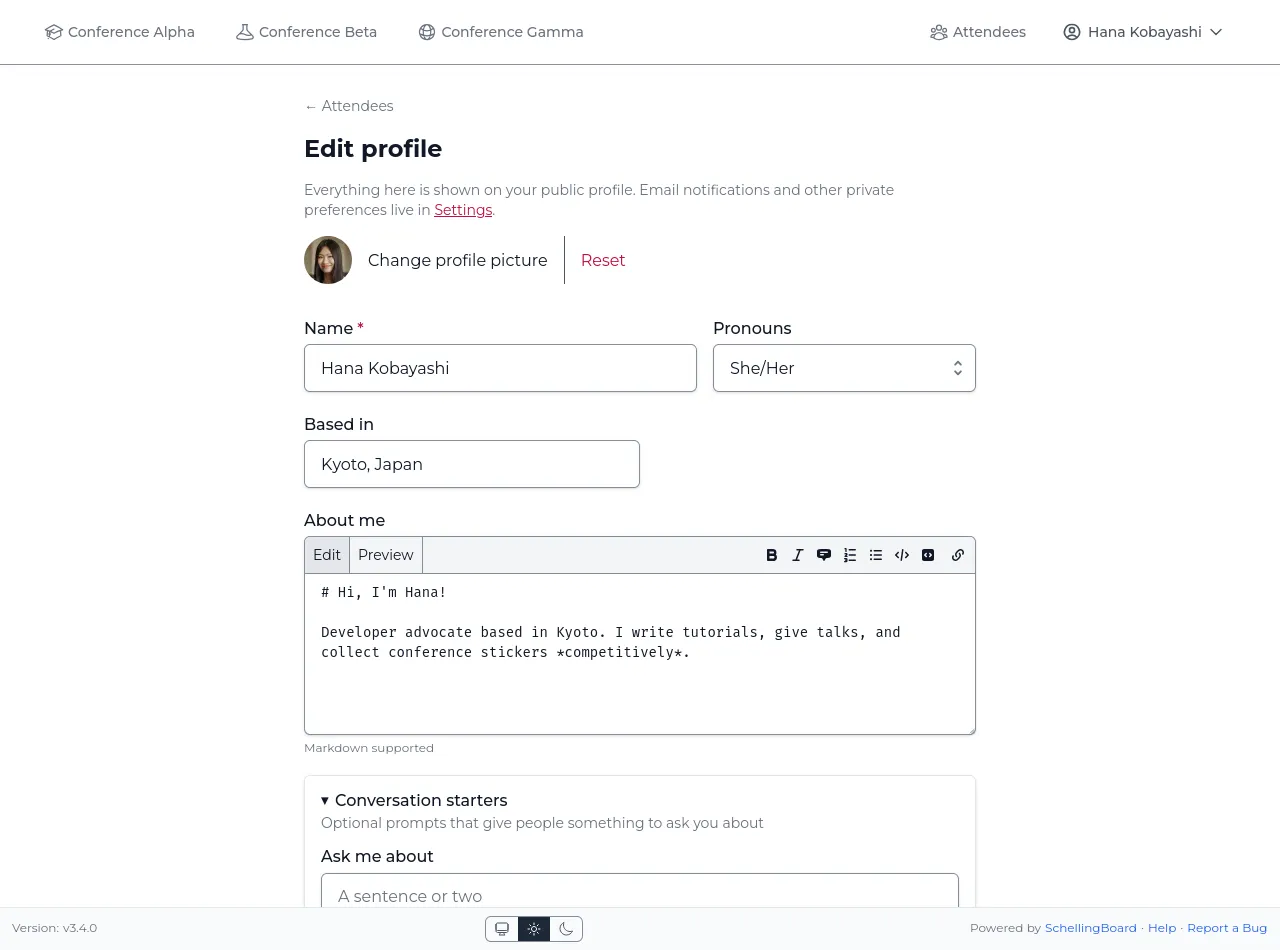
After picking your name, open “Edit profile” to set your About me, pronouns, and avatar. These are visible to other attendees wherever your name appears — proposals, hosting, RSVPs.
About me, conversation-starter answers, and contact details all accept Markdown, and a web or email address you paste in becomes clickable on its own.
Protect your name
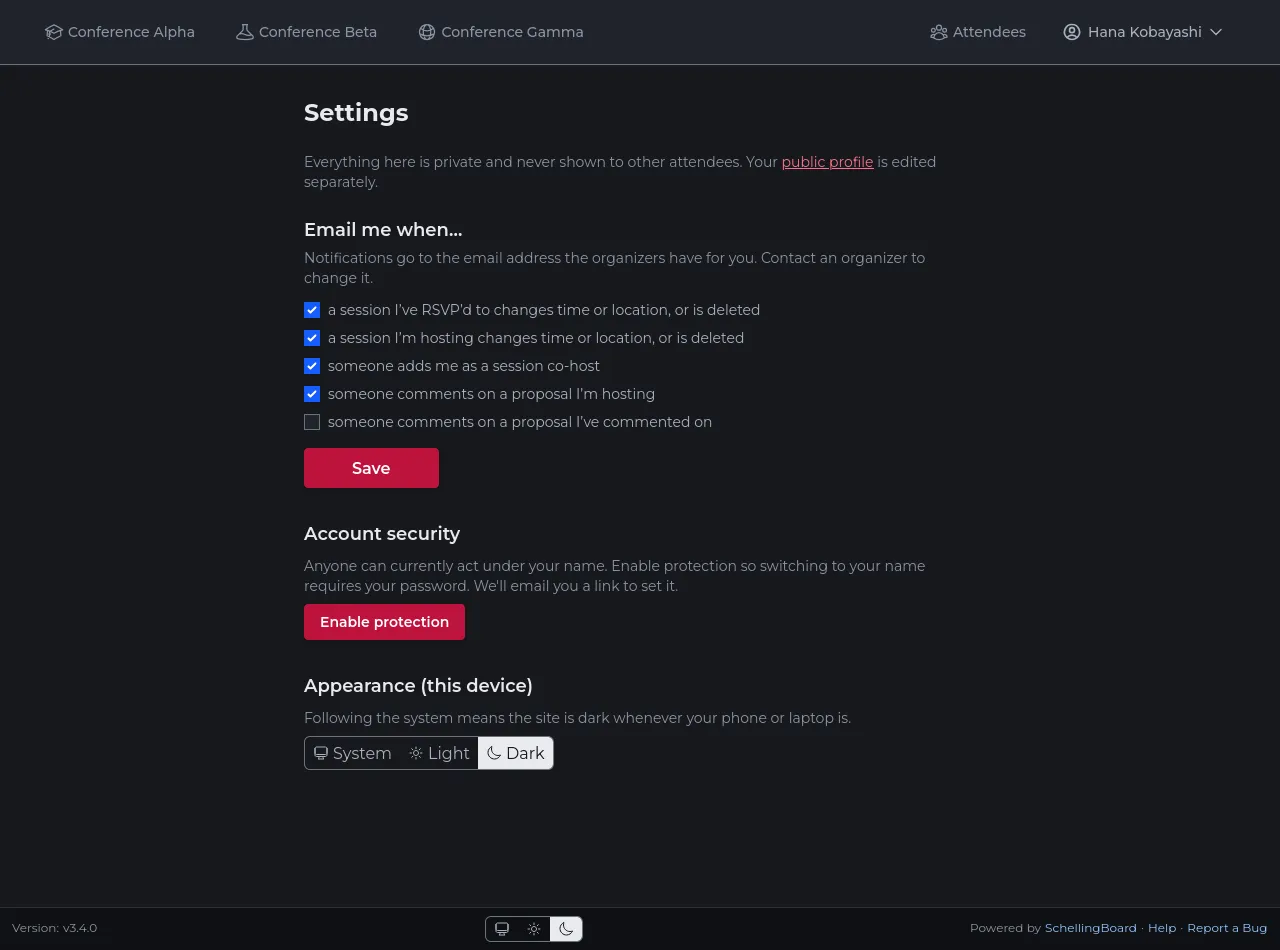
Normally anyone on the site can pick your name and act as you. To require a login instead, open Settings → Account security and click Enable protection. You’ll be emailed an 8-character code, valid for 10 minutes; type it in to confirm. You can set a password at the same time.
Once protected, picking your name asks for that password or a fresh emailed code. The login lasts a week, or until you switch to a different name, and covers everything done as you: voting, RSVPing, editing your profile, creating or changing sessions. Turning protection off or changing the password needs either the current password or a fresh code, and you’ll get an email telling you it happened.
- Codes go to the email address the organizers have on file for you. If you can’t receive it, ask them to check the address. If the event has no email set up, protection isn’t available.
- Protection is what makes your sessions yours. Only a session’s hosts can edit or delete it — but an unprotected name can be picked by anyone, who then edits as you.
- Lost both your password and your email? Ask an organizer to update the address on file; codes then go to the new one.
Settings
- Email notifications (if the event has email) — when a session you host or RSVP’d to is moved or deleted, when someone adds you as a co-host, and when someone comments on a proposal you host. All on by default, each can be turned off. Emails about every new comment on a proposal you commented on are off by default.
- Appearance — System, Light or Dark, also available at the very bottom of every page. System follows your phone or laptop, so the site turns dark in the evening if your device does. The choice is remembered per device, not per name, and works before you’ve picked a name.