Admin UI guide
Admin UI guide
The admin UI lives at /admin. It opens for site admins, who sign in there with
their username or email and a password. When the site has a SITE_PASSWORD, enter that first.
A site admin keeps the access until the role is removed or their sessions are ended; changing their
password signs them out everywhere. The site password’s cookie stays valid for up to a week: rotate
AUTH_SECRET to end it sooner, which logs out the site gate only.
Site admins
A site admin is a person who opens /admin after signing in with a password or an emailed code.
There is no shared admin password any more; a server that still sets ADMIN_PASSWORD logs a
warning, and the setting does nothing. A site admin’s name is protected, and changes they make are
recorded under their name.
- The first site admin: while the site has none, the server logs a one-time link at start (valid
24 hours). Open it, choose your name or enter a name and email, and set a username and password.
To get a new link later, set
SB_BOOTSTRAP_LINK=1for one start. - Make site admin / Remove site admin: on the Users page, per user. The last site admin cannot be removed. A site admin who has not set a password yet is marked “No password yet” and signs in with a reset link.
Site settings
One global row shown when there’s more than one event (see multi-event installs):
- Title (required) and Description (Markdown) for the landing page.
- Map image — JPEG/PNG/WebP, max 5 MB.
Events
- Name (required) — the URL slug is derived from the name once, at creation, and never changes
afterwards even if you rename the event later. This keeps existing links/bookmarks working.
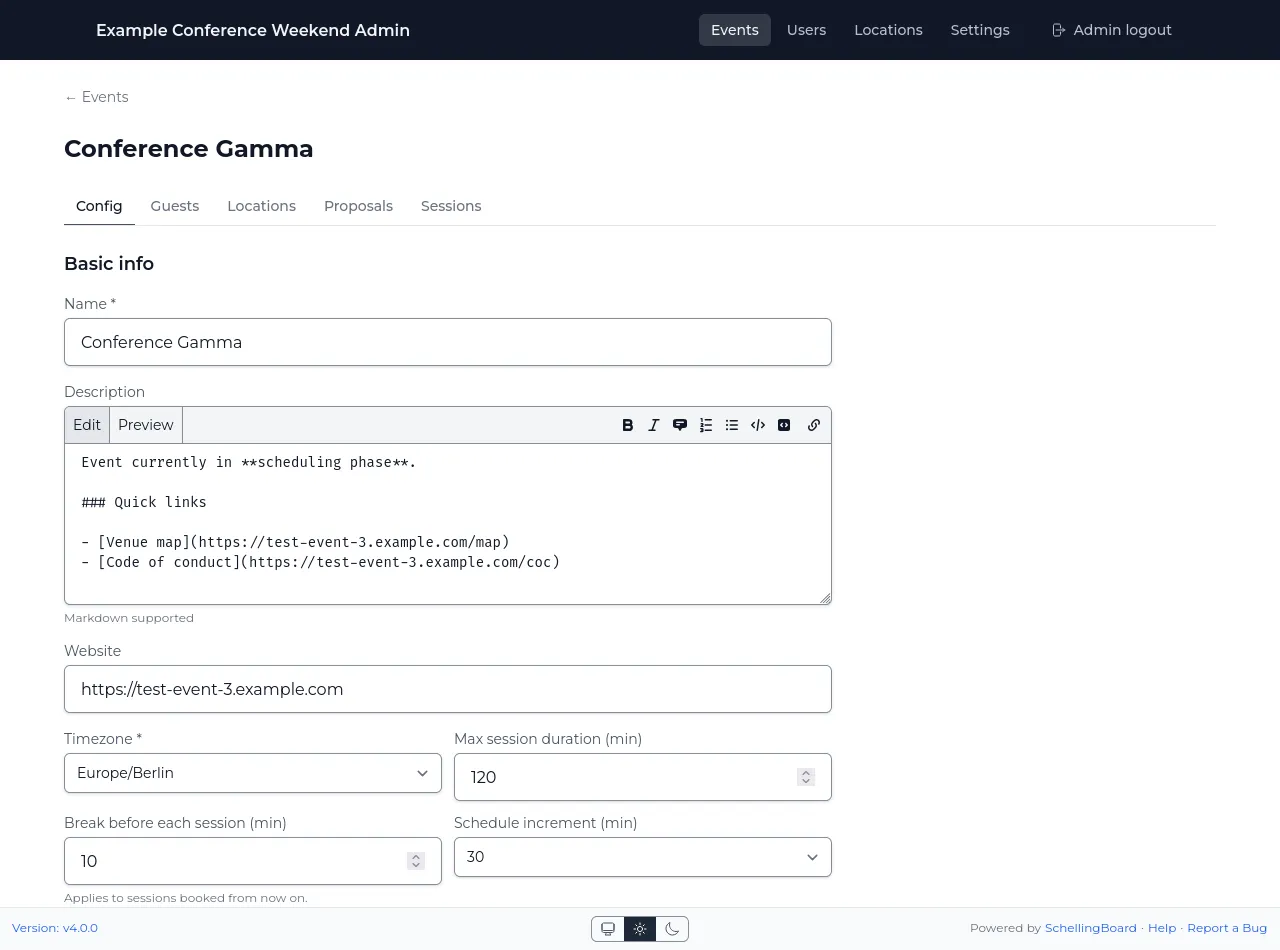
admin,api,login, andmediacan’t be used as event names. - Description (Markdown), Website, Timezone (required, type to search — all dates/times for this event are edited in this zone), Icon (shown beside the event’s name in the menu and on the home page).
- Max session duration, break before each session (attendees’ sessions start this long into their slot; changing it affects only sessions booked afterwards), schedule increment (15/30/60 min grid granularity — can’t be changed if it would misalign existing days).
- Identity — Verified (the default for new events): everyone taking part must prove who they are, with their personal join link, an emailed code or a password, and picking a name is not enough. Open: anyone can pick any name and act as that person. Existing events stay Open. Someone who takes part in any verified event needs proof in all of their events.
- Enforce session capacity as a hard limit — when on, RSVPs are rejected once a session’s capacity is reached; otherwise capacity is advisory only.
- Phases — the three phase date ranges, see How it works.
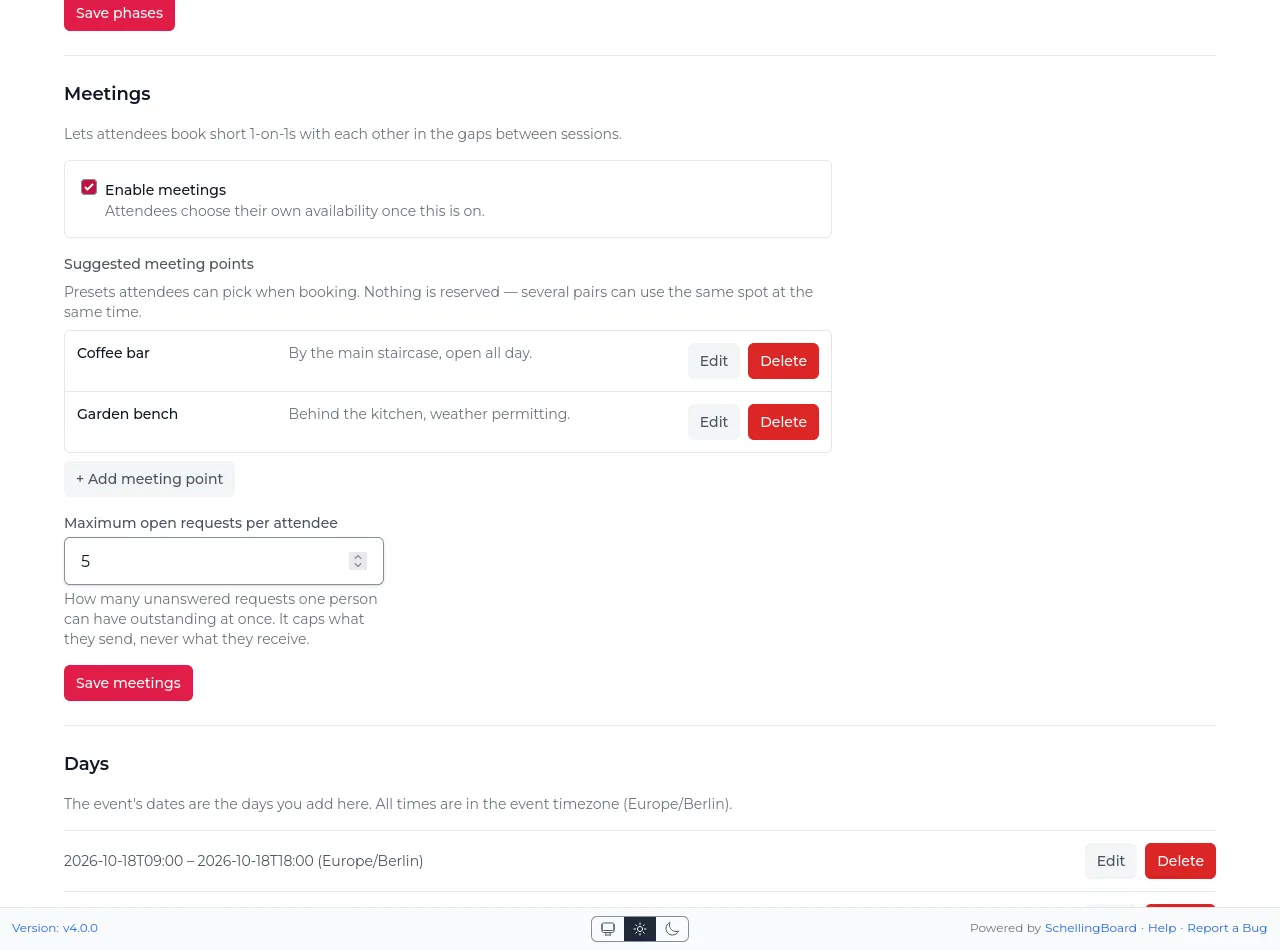
- Meetings — 1-on-1s between attendees, off by default, and open only during the scheduling phase. Once switched on: suggested meeting points, a named list with optional descriptions that attendees pick from when booking, and a maximum open requests per attendee, limiting how many unanswered requests one person may have outstanding to others at a time. Meeting slots are the same length as the schedule increment above, and run for the whole of each day; attendees clear the ones they want kept free. Changing the schedule increment therefore asks everyone to choose their availability again. Meeting points are suggestions, not reservations — several pairs can name the same spot in the same slot, and an attendee can type somewhere else instead. Renaming or deleting one never changes a meeting already arranged there.
- Days — per-day schedule windows, which also make up the event’s dates: visible Start/End time range, plus a separate Bookings open/close window controlling when attendees can self-book a blank bookable slot on that day (a new day starts with the same window as its Start/End until you change it). Deleting a day also deletes any sessions scheduled inside it (warned before confirming); their hosts and the guests who RSVPed to them are notified. A day may end after midnight (e.g. Friday 09:00 → Saturday 03:00). Since a session always belongs to exactly one day, that is how you allow late-night sessions: extend the evening’s day into the small hours instead of adding a separate day for them. Hosts then pick that day and a time such as 01:00, and the session is scheduled on the following calendar date.
- Deleting an event requires typing the event name to confirm, and cascades to its days, proposals, sessions, RSVPs, and guest/location assignments.
Locations
Locations are a global pool, not per-event — one location can be assigned to multiple events. The event’s “Locations” tab assigns rooms from this pool and sets when they are unavailable; it doesn’t create new ones.
- Name, Capacity, Description, Area description, Color (schedule grid). The description is what a room offers (projector, whiteboard, seating); attendees open it from the ⓘ next to the room name.
- Bookable — whether attendees can self-book blank slots here. A location that isn’t bookable still shows on the grid and you can schedule sessions into it yourself; attendees just can’t pick it.
- Image — JPEG/PNG/WebP, max 5 MB, min 400px wide, must be 4:3 (±2% tolerance).
- Sort order — controls column order in the grid.
- Deleting a location requires typing the name to confirm; the dialog shows how many sessions/events reference it before it cascades. The hosts of sessions in it and the guests who RSVPed to them are notified that the session changed.
Attendees are only ever offered the locations assigned to the event they are in and that are bookable — everything else is refused. To take a location off an event’s grid without deleting it, unassign it from the event.
Location unavailability
Below the assignments on the event’s “Locations” tab, mark the times a location can’t be used at this event — a room only free on Saturday, or closed in the afternoon. Tick one or more locations (or All locations) and pick a start and end, or fill in a whole day with one click. Each ticked location gets its own entry. Attendees aren’t offered those slots, and the grid shows them empty, as before bookings open. You can still place a session there yourself.
Use this rather than a blocker session when attendees don’t need to know why. Something they should see on their schedule, such as lunch, stays a blocker.
Guests / Users
Guests are also a global pool (Name, Email — unique when set, Username, About me, Pronouns, Avatar), independent of any event. The email may be left empty, which suits a site that sends no mail; such a guest gets no emails and signs in with a personal join link. A username lets a guest sign in with it and a password instead of their email. Per-event participation is a separate assignment on the event’s “Guests” tab, or by ticking events in the add and edit forms on the Users page. The ticked events stay ticked after “Add user”, so adding several guests to the same events is quick; saving an edit sets the guest’s events to those ticked.
- A guest must be assigned to an event before they can vote, RSVP, or add a proposal/session in it — being in the global list isn’t enough. This is enforced server-side.
- There are no roles — every assigned guest has identical capabilities.
- CSV import: header row needs
nameandemailcolumns (any order, delimiter auto-detected: comma, semicolon, or tab). The whole file is rejected if any row is invalid (line numbers given). An empty email makes a user without one. Existing users (matched by email, or by exact name when the email is empty) aren’t recreated but are still assigned to the events selected in the import. - Send test email — see How it works § Email.
- Attendees edit their own About me/Pronouns/Avatar from a profile page once they’ve picked their name; admins don’t set these.
Personal join links
On an event’s Guests tab, New link makes a personal link for one guest: copy it into a messenger and send it. Mail new links emails a link to every guest of the event, or only to the ones you ticked; guests without an email are counted and skipped.
- A link signs its guest in and adds them to the event. It asks for a sign-in instead once the guest has set a password after the link was made, and always for a site admin.
- A new link replaces the guest’s earlier one for that event, and the guest is emailed that a new link exists. A link is shown once; make a new one if you lost it.
- A guest who forgot their password and cannot get email (no address on file, or a site that sends none) gets back in with a new link, then sets a new password under Settings → Account security without the old one. Only a link login can do this, and never for a site admin. Whoever has the link can do it, so share it privately. Other guests reset by email.
Attendees who protect their name
Any attendee can opt into name protection from their own settings. There is no admin control over this: you can’t require it, and you can’t turn it off for someone.
The one thing you can do is fix a lockout. Protection is anchored to the guest’s email address, so an attendee who’s lost both their password and their mailbox is stuck until you change their email address here — codes then go to the new address and they can unlock themselves. Verify who you’re talking to first; this is effectively a password reset.
Deleting and recreating the guest also clears protection, but discards their votes, RSVPs, and profile — prefer changing the email.
Proposals
Admins can edit a proposal’s title, description, duration, and host list, and delete it (confirm dialog shows how many votes/host-links will be destroyed). There’s no separate approve/reject step — proposals are visible and votable as soon as attendees submit them.
Create session on a proposal opens the session form with its title, description and hosts filled in, and the end follows the start by the proposal’s duration until you type one. It works in any phase. The session is linked to the proposal, so the proposal shows it as scheduled. Set the day, time and room there, or leave it unscheduled.
Sessions
Admins can create/edit/delete sessions directly, outside the normal proposal → schedule flow.
- Title (required), Description (Markdown), Day and Start/End time (any minute, not just the schedule increment; on a day that runs past midnight, 01:00 is the next morning; pick “Not scheduled” to leave a session off the schedule), Capacity (0 means no limit; a new session in one room takes the room’s capacity until you type one), Hosts, Locations (All locations ticks every location, e.g. for a blocker).
- Break before — when creating a session, the event’s break is added to the start you enter, as for attendees’ sessions. Untick it for a session that should start right away, such as an opening keynote.
- Blocker — something attendees should see on the schedule but can’t attend as a session, such as lunch. To just take a room out of use, see Location unavailability.
- Closed — an attendee-facing note that latecomers shouldn’t join; it does not restrict RSVPs.
- Admin-managed — checked by default for admin-created sessions; hosts can’t edit or delete an admin-managed session themselves, only the admin panel can.
- Duplicate opens a new session form filled in from an existing session. To put lunch on every day, create it once, then duplicate it and change the Day.
- The No hosts box above the list shows only the sessions nobody hosts. Any attendee can take over such a session, unless it is admin-managed.
- Deleting a session removes its RSVPs but only unlinks (doesn’t delete) hosts/locations. Admins can also remove a single guest’s RSVP from the session’s RSVP list.
- If a host or another admin saved the session or proposal while you had its form open, your save is refused rather than undoing their change. Copy your edits, cancel, and edit again. The same holds for event settings, days, locations, meeting points and guests. On the event page, save a section before you edit the next one: saving one section refuses the save of another section that already has unsaved edits.
Statistics
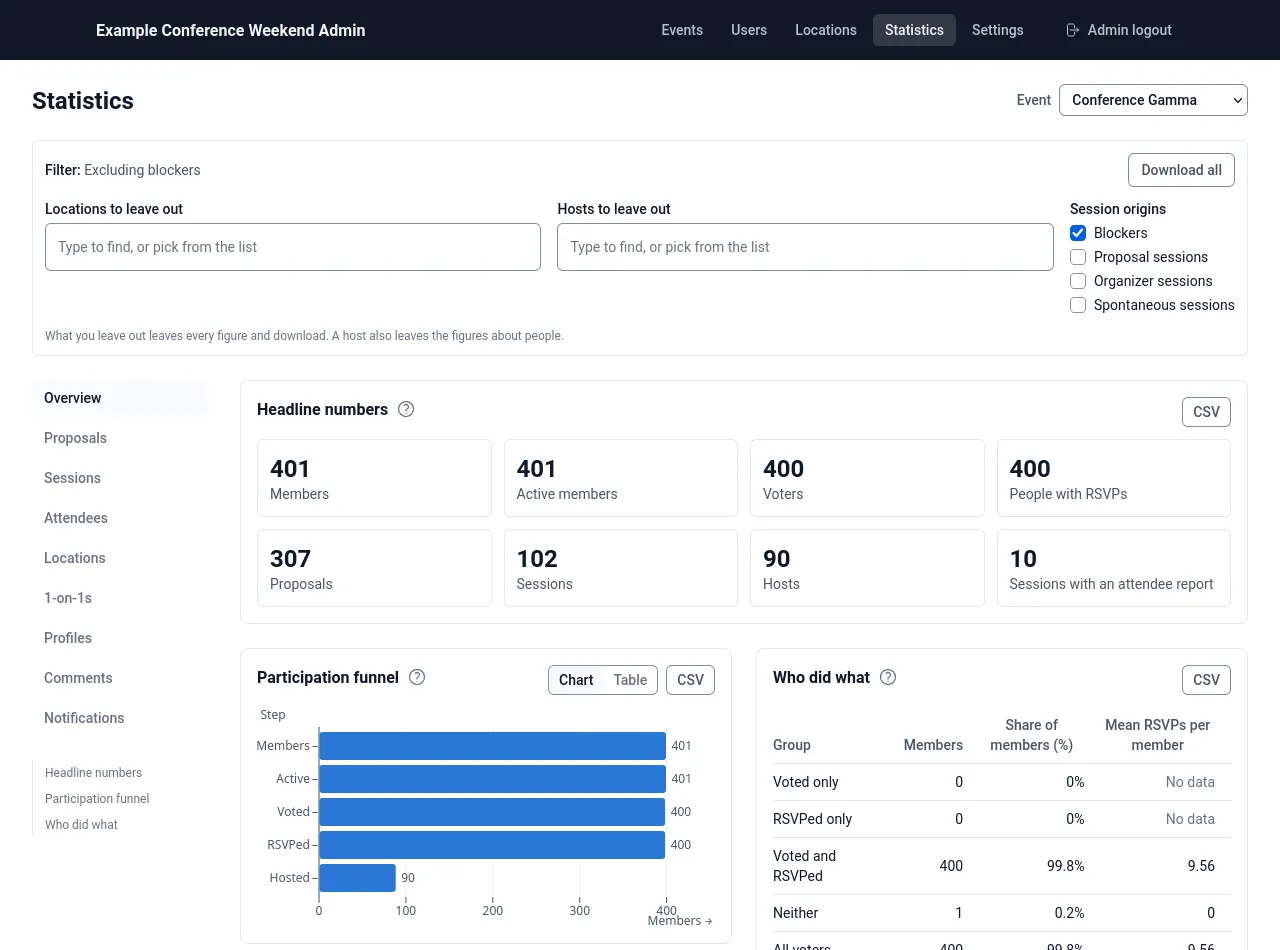
Statistics in the admin menu answers how an event went: did proposals turn into sessions, did the venue work, which features did people use. It opens the event running or run last; choose another in Event. An event’s admin page links to its statistics too.
Each figure is a card with a title; its ? button explains what it shows and how to read it. Most cards draw a chart, and Table next to it shows the figures behind it: sort by clicking a column. A long table shows 25 rows at a time, and its search box finds rows by their text. CSV saves the whole table, Download all every table as a ZIP. On a wide screen the sections and the figures of the open section are listed on the left. A figure the database cannot supply, such as attendee counts for an event that ran before they existed, says “No data” instead of 0. The page counts what the database holds now, so it works for a past event after an upgrade.
Filter
The filter above the figures leaves things out of every figure: type in Locations to leave out or Hosts to leave out to find one, and tick kinds of session (blockers are left out by default). Reset filter goes back to the default. A typical use is leaving out volunteer shifts so that they do not skew attendance. The filter lives only in the page address, so a link keeps it and nothing is saved.
- A session or proposal leaves when all of its hosts are left out; a session also leaves when all of its locations, or its kind, are.
- A host you leave out also leaves the figures about people: their votes, RSVPs, comments, profile and 1-on-1s. Only people who host sessions appear in the host list.
- A room still counts as occupied by a left-out session or blocker, so the gaps in the Locations figures stay true.
- Downloads carry the filter, and their file names say “filtered”.
Sections
- Overview: headline numbers, the participation funnel from members to hosts, and how many members voted, RSVPed, both or neither.
- Proposals: one row per proposal with its votes, rank and what became of it, popular proposals that were never scheduled, whether late proposals got fewer votes, and votes per voter.
- Sessions: RSVPs, fill, reported attendees, duration, start hour and day, parallel sessions, and whether hosts reported attendance. It also compares the attendance model’s prediction with the reported counts.
- Attendees: RSVPs per attendee, the gaps between RSVPed sessions and double bookings.
- Locations: booked and free hours, gaps, utilization by hour and day, and parallel sessions against RSVPs by hour. Use it to plan next year’s grid.
- 1-on-1s: availability offered, requests by status, response time, accepted meetings by hour and meeting points. This section appears only if the event uses, or used, 1-on-1s.
- Profiles, Comments and Notifications: how many members filled in which profile fields, comments by what they are on and per day, and email, push and in-app notification use. Profiles and Comments appear only when the event has such data.
Read the figures with care
- RSVPs are intent, not attendance. Attendee counts are typed in by hosts, are rough, and exist only for sessions whose host reported one. Check “did hosts report?” in Sessions first: it tells you how far to trust every attendance figure.
- The prediction is a rough guide. The attendance model was fitted on one event (13 sessions). The page labels it so, and shows how often the reported counts fell inside its ranges.
- Correlations need many sessions. With fewer than 15 sessions (pairs) the page says it is too few to say anything. A correlation does not show that one thing caused the other.
- Votes and RSVPs have no history. The page cannot show how either grew over time, and a cancelled RSVP leaves no trace.
- Response times for 1-on-1s are partial. A later cancel overwrites the time of the answer, so only requests still accepted or declined are timed. A pending request counts as expired once its slot has started.
- Comments on a profile have no event. On a site with several events they count in every event the member belongs to. In-app notifications likewise count all events of the members, and a notification someone deleted unread is not counted, so the read share is a lower bound.
Privacy
Tables about people list rows without names or ids: each person is “P001”, “P002”, and so on, sorted by value. The numbering changes with every table and every request, so rows cannot be joined across tables or matched to a person. Free text, such as languages and places in profiles, is shown only when at least three members share it; the rest is “Other”. Contact details and meeting places people typed are never shown. Statistics are visible to site admins only.