Admin UI guide
Admin UI guide
The admin UI lives at /admin, gated by a single shared ADMIN_PASSWORD (no
per-admin accounts). It is completely independent from SITE_PASSWORD —
neither password grants access to the other side. Unset, /admin returns a
404 rather than a login prompt.
Both gates sign their cookies with AUTH_SECRET, and existing sessions stay
valid for up to a week. To revoke access immediately, rotate AUTH_SECRET
too — which logs out everyone, attendees included.
Site settings
One global row shown when there’s more than one event (see multi-event installs):
- Title (required) and Description (Markdown) for the landing page.
- Map image — JPEG/PNG/WebP, max 5 MB.
Events
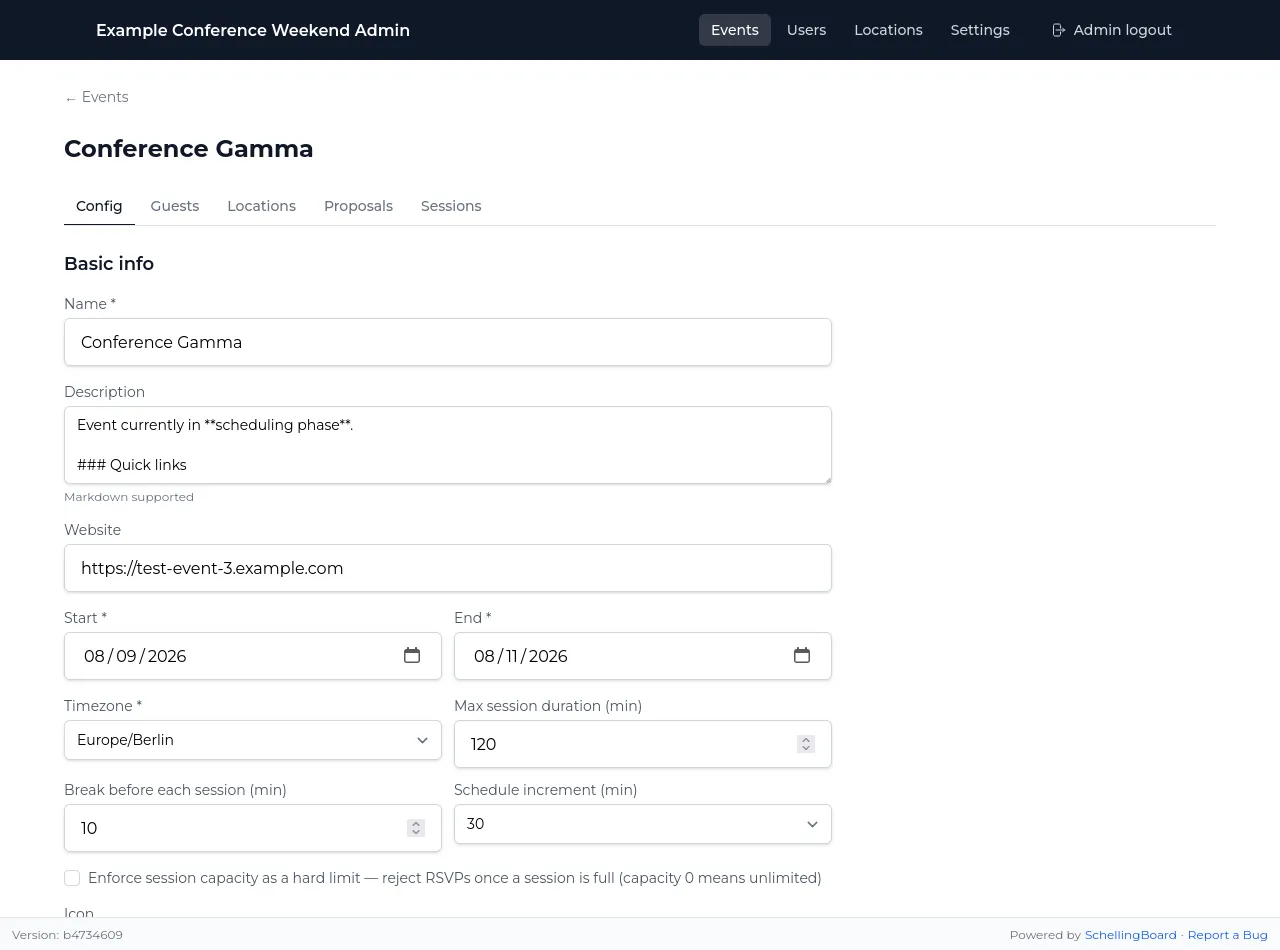
- Name (required) — the URL slug is derived from the name once, at
creation, and never changes afterwards even if you rename the event later.
This keeps existing links/bookmarks working.
admin,api,login, andmediacan’t be used as event names. - Description (Markdown), Website, Timezone (required — all dates/times for this event are edited in this zone), Icon (decorative).
- Max session duration, break before each session (attendees’ sessions start this long into their slot; changing it affects only sessions booked afterwards), schedule increment (15/30/60 min grid granularity — can’t be changed if it would misalign existing days).
- Enforce session capacity as a hard limit — when on, RSVPs are rejected once a session’s capacity is reached; otherwise capacity is advisory only.
- Phases — the three phase date ranges, see How it works.
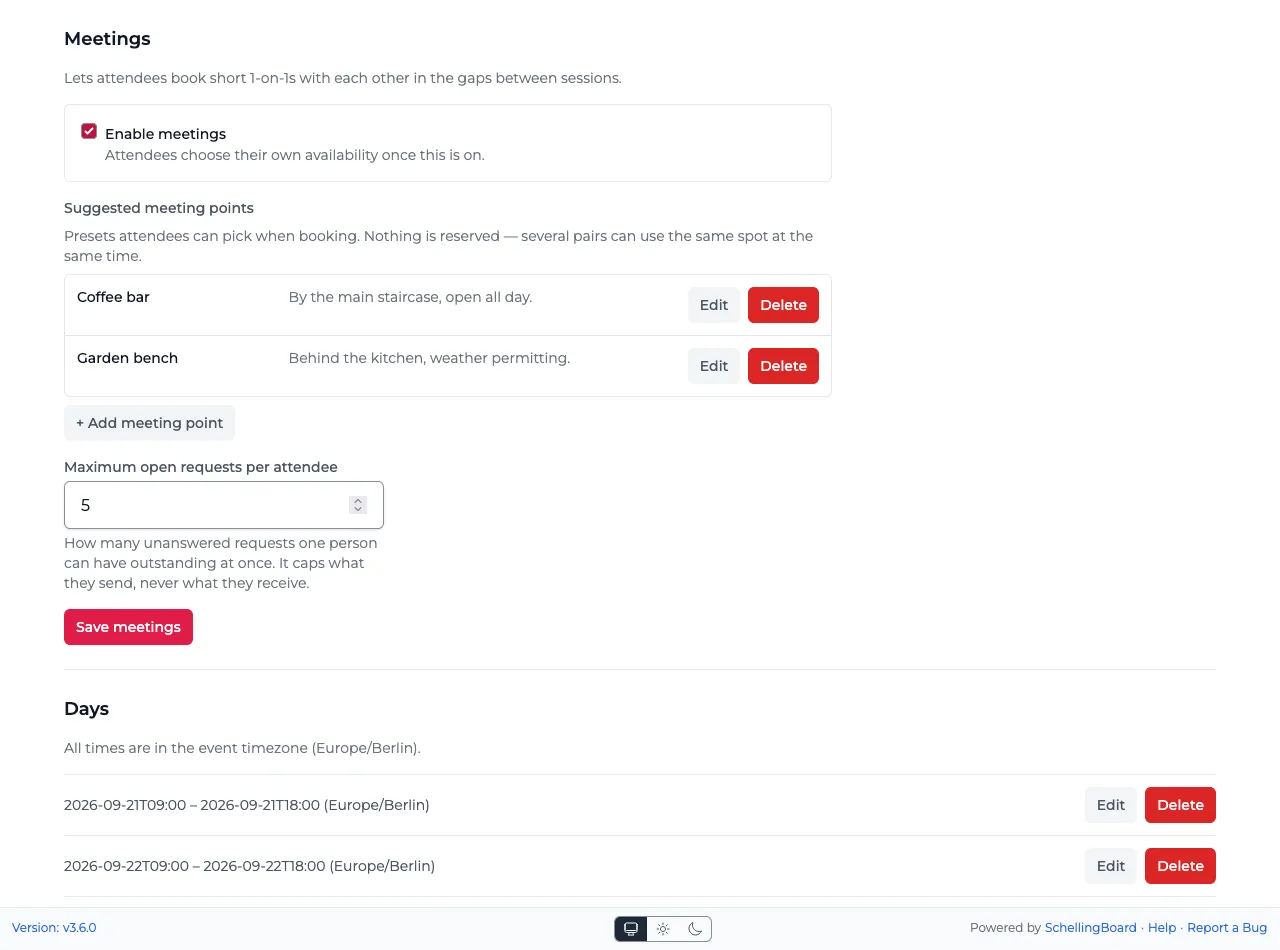
- Meetings — 1-on-1s between attendees, off by default, and open only during the scheduling phase. Once switched on: suggested meeting points, a named list with optional descriptions that attendees pick from when booking, and a maximum open requests per attendee, limiting how many unanswered requests one person may have outstanding to others at a time. Meeting slots are the same length as the schedule increment above, and run for the whole of each day; attendees clear the ones they want kept free. Changing the schedule increment therefore asks everyone to choose their availability again. Meeting points are suggestions, not reservations — several pairs can name the same spot in the same slot, and an attendee can type somewhere else instead. Renaming or deleting one never changes a meeting already arranged there.
- Days — per-day schedule windows, which also make up the event’s dates: visible Start/End time range, plus a separate Bookings open/close window controlling when attendees can self-book a blank bookable slot on that day. Deleting a day also deletes any sessions scheduled inside it (warned before confirming). A day may end after midnight (e.g. Friday 09:00 → Saturday 03:00). Since a session always belongs to exactly one day, that is how you allow late-night sessions: extend the evening’s day into the small hours instead of adding a separate day for them. Hosts then pick that day and a time such as 01:00, and the session is scheduled on the following calendar date.
- Deleting an event requires typing the event name to confirm, and cascades to its days, proposals, sessions, RSVPs, and guest/location assignments.
Locations
Locations are a global pool, not per-event — one location can be assigned to multiple events. The event’s “Locations” tab assigns rooms from this pool and sets when they are unavailable; it doesn’t create new ones.
- Name, Capacity, Description, Area description, Color (schedule grid). The description is what a room offers (projector, whiteboard, seating); attendees open it from the ⓘ next to the room name.
- Bookable — whether attendees can self-book blank slots here. A location that isn’t bookable still shows on the grid and you can schedule sessions into it yourself; attendees just can’t pick it.
- Image — JPEG/PNG/WebP, max 5 MB, min 400px wide, must be 4:3 (±2% tolerance).
- Sort order — controls column order in the grid.
- Deleting a location requires typing the name to confirm; the dialog shows how many sessions/events reference it before it cascades.
Attendees are only ever offered the locations assigned to the event they are in and that are bookable — everything else is refused. To take a location off an event’s grid without deleting it, unassign it from the event.
Location unavailability
Below the assignments on the event’s “Locations” tab, mark the times a location can’t be used at this event — a room only free on Saturday, or closed in the afternoon. Tick one or more locations (or All locations) and pick a start and end, or fill in a whole day with one click. Each ticked location gets its own entry. Attendees aren’t offered those slots, and the grid shows them empty, as before bookings open. You can still place a session there yourself.
Use this rather than a blocker session when attendees don’t need to know why. Something they should see on their schedule, such as lunch, stays a blocker.
Guests / Users
Guests are also a global pool (Name, Email — unique, About me, Pronouns, Avatar), independent of any event. Per-event participation is a separate assignment on the event’s “Guests” tab.
- A guest must be assigned to an event before they can vote, RSVP, or add a proposal/session in it — being in the global list isn’t enough. This is enforced server-side.
- There are no roles — every assigned guest has identical capabilities.
- CSV import: header row needs
nameandemailcolumns (any order, delimiter auto-detected: comma, semicolon, or tab). The whole file is rejected if any row is invalid (line numbers given). Existing users (matched by email) aren’t recreated but are still assigned to the events selected in the import. - Send test email — see How it works § Email.
- Attendees edit their own About me/Pronouns/Avatar from a profile page once they’ve picked their name; admins don’t set these.
Attendees who protect their name
Any attendee can opt into name protection from their own settings. There is no admin control over this: you can’t require it, and you can’t turn it off for someone.
The one thing you can do is fix a lockout. Protection is anchored to the guest’s email address, so an attendee who’s lost both their password and their mailbox is stuck until you change their email address here — codes then go to the new address and they can unlock themselves. Verify who you’re talking to first; this is effectively a password reset.
Deleting and recreating the guest also clears protection, but discards their votes, RSVPs, and profile — prefer changing the email.
Proposals
Admins can edit a proposal’s title, description, duration, and host list, and delete it (confirm dialog shows how many votes/host-links will be destroyed). There’s no separate approve/reject step — proposals are visible and votable as soon as attendees submit them.
Sessions
Admins can create/edit/delete sessions directly, outside the normal proposal → schedule flow.
- Title (required), Description (Markdown), Day and Start/End time (any minute, not just the schedule increment; on a day that runs past midnight, 01:00 is the next morning; pick “Not scheduled” to leave a session off the schedule), Capacity (0 means no limit; a new session in one room takes the room’s capacity until you type one), Hosts, Locations (All locations ticks every location, e.g. for a blocker).
- Break before — when creating a session, the event’s break is added to the start you enter, as for attendees’ sessions. Untick it for a session that should start right away, such as an opening keynote.
- Blocker — something attendees should see on the schedule but can’t attend as a session, such as lunch. To just take a room out of use, see Location unavailability.
- Closed — an attendee-facing note that latecomers shouldn’t join; it does not restrict RSVPs.
- Admin-managed — checked by default for admin-created sessions; hosts can’t edit or delete an admin-managed session themselves, only the admin panel can.
- Duplicate opens a new session form filled in from an existing session. To put lunch on every day, create it once, then duplicate it and change the Day.
- Deleting a session removes its RSVPs but only unlinks (doesn’t delete) hosts/locations. Admins can also remove a single guest’s RSVP from the session’s RSVP list.